Notice: Function _load_textdomain_just_in_time was called incorrectly. Translation loading for the wp-plugin-mojo domain was triggered too early. This is usually an indicator for some code in the plugin or theme running too early. Translations should be loaded at the init action or later. Please see Debugging in WordPress for more information. (This message was added in version 6.7.0.) in /home3/kevin48/public_html/best-cheap-3dprinters.com/wp-includes/functions.php on line 6131

Warning: Cannot modify header information - headers already sent by (output started at /home3/kevin48/public_html/best-cheap-3dprinters.com/wp-includes/functions.php:6131) in /home3/kevin48/public_html/best-cheap-3dprinters.com/wp-includes/feed-rss2.php on line 8
Extend Your Knowledge Archives - Best Cheap 3D Printers http://best-cheap-3dprinters.com/category/extend-your-knowledge/ Mon, 29 Jan 2018 07:56:32 +0000 en-US hourly 1 https://wordpress.org/?v=6.9.4 Insert Metals Into Your 3D Prints https://best-cheap-3dprinters.com/insert-metals-3d-prints/ https://best-cheap-3dprinters.com/insert-metals-3d-prints/#comments Wed, 29 Nov 2017 09:23:56 +0000 http://best-cheap-3dprinters.com/?p=4263 Do you want to add more variety and functionality to your 3D printed parts? In this post we learn how to produce Metal-Plastic combinations. The metal parts can play the role of a connecting element for example a bolt or a … Read More

The post Insert Metals Into Your 3D Prints appeared first on Best Cheap 3D Printers.

]]>
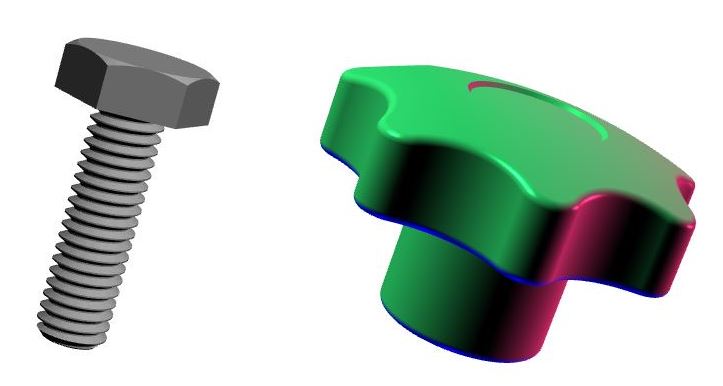
Do you want to add more variety and functionality to your 3D printed parts? In this post we learn how to produce Metal-Plastic combinations. The metal parts can play the role of a connecting element for example a bolt or a nut in a knob.

Or they can add strength to the functional surfaces of our plastic parts for example brass bushes inside the holes. We can insert magnetic elements to our plastic parts and use them for example to stick to some surfaces or for sorting them.

Methods of Metal-Plastic 3D Printing

We focus on two different methods and watch a number of examples that are presented in the following youtube videos.

These methods are :

  • Design Method: Design your model with appropriate geometry for metal ( or non-metal ) insert and consider a pause in its 3D printing process for adding the insert to the part.

Each one of the selected videos includes a number of very helpful and important points and resources. By watching all of them we can gain a very good view of how to perform this task completely and without problem.

We try to mention the important parts before each video.

Now Relax and enjoy watching them… 


1: Design Method 

1-1: Inserting A Nut In A Knob

In this video Chuck from CHEP 3D Printing & Electronics Youtube channel beautifully shows how we can create a spare, out of a sample part and guides us through all the following steps to :

  • Scan the part with a 2D simple scanner and produce a 2D image from the main side of the part in .jpg or .PNG formats.

  • Use an image editing software ( like Instant Alpha in Macs or GIMP for windows ) to remove the background from the image and trim the excess details , and eventually change it to a format which is usable by 3D modelling software. ( SketchUp)

  • Use an online free .PNG to SVG converter.

  • Complete the model with 3D modelling software and add the appropriate interior hole for inserting the nut. Save the model to .STL format which is usable by 3D printer.

  • Use the Slicer software to Slice the model

  • Print up to a height to stop the printing process and placing the nut in the plastic and then resume the print to complete the part.


Note: Chuck is using a feature in a da’Vinci software to pause the print and resume from the last point of pause after putting the nut in. This pause could be easily programmed using a plugin in CURA free software. ( Click Here to see how!)

Chuck is a great teacher. Now watch this interesting video  and enjoy it….

There are still more helpful and important points to learn so continue watching the rest of videos below. 


1-2: Insert A Nut In Your 3D Print Using CURA

In this interesting video DIY3DTECH.com youtube channel is using  Tweak at Z 4.2.0 plugin (Pause at height ) in CURA to set the appropriate pausing height for inserting the nut.

If you want to know more about this useful plugin in CURA, please click here.


1-3: Insert A Hex Bolt Into A 3D Printed Part

This interesting video has been prepared by  CAPINC  you tube channel.

He introduces McMaster-Carr website that has a big library of mechanical parts and allows you to download the solidworks model of most of the parts. So if you are using solid works, now you have access to a big and invaluable source of the parts and drawings. Actually you can find a wide range of file formats including DXF and DWG.

He finds the file for a bolt that he wants to insert into a 3D printed knob.

Like the previous videos he makes some slight changes in the knob model and locates the pause height.

There are two important points here:

  • Spray a layer of an anti rust material on the outer surface of the bolt. That helps the molten plastic to adhere well to the bolt.
  • Make sure that the top of the hex head of the bolt sits below the horizontal line of the last layer before pausing. Why? To prevent the extruder head to hit the top of the bolt after resuming the printing process.


2: Thermal Method / Put Threaded Metal Inserts In Your 3D Prints


2: Thermal Method / Put Threaded Metal Inserts In Your 3D Prints

2-1: Using Heat or Press Fit Elements
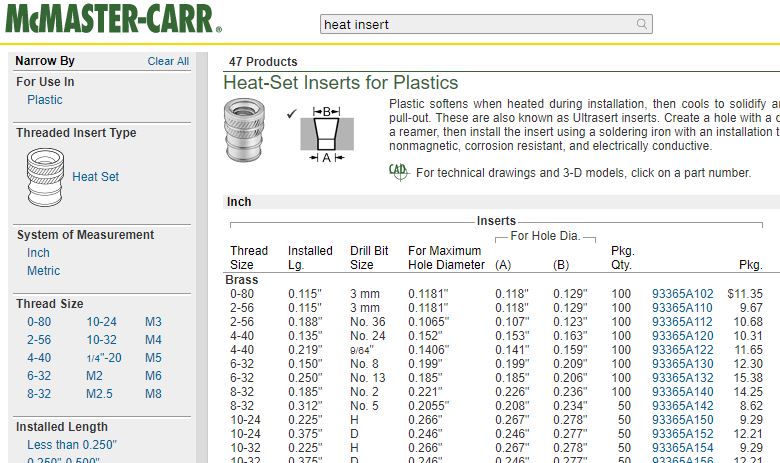
Heat insert

In this interesting video David from CAPINC youtube channel is showing how to insert metal parts in a 3D printed part using heat . It’s easy and useful.

He uses Metal Heat Inserts for the plastics from McMaster-Karr website.

Point 1: In each McMaster-Karr product page you can find the maximum hole diameter that is appropriate for each insert. You can use this diameter when designing your part with 3D modeling software. Generally before you buy the brass inserts make sure that their outside diameter is slightly bigger than the inside diameter on your 3D printed plastic parts.


Point 2: He introduces press fit expansion inserts in McMaster-Karr website. With special shape that these parts have they don’t need heat to go inside a whole and then after you fasten a bolt in them their outside diameter will expand and create a good press fit with the plastic part.


Now relax and enjoy this video….


2-2: Some More Points on Thermal Inserts

Now we pay attention to some more points from the following video from MakerBot youtube channel.

Point 3: To prevent overheating, make sure not to complete inserting the parts all through their lengths in just one run.  Do for example around 80 percent in the first run and then complete the rest of it in the second run.

Point 4: When fastening the bolts inside the inserts be careful and do not over tighten the bolt. This can break the plastic surrounding the insert and ruin your 3D printed part. 


2-3: Levelling the Inserts inside plastic 3D Print

You may ask yourself,”How can we make sure the top of the insert is at the same level as the top of the plastic?”

Point 5:The following video from tgammoncad youtube channel is showing a very interesting and easy way to do it. He inserts the metal up to 80 percent of the length inside the plastic and then while the metal insert is still warm presses it to the flat surface of his desk until the inserting is complete. You can also do this by having a (metallic or wooden) flat surface available and just press it with your hand on the insert until it goes completely insider the plastic. 

Now enjoy watching the video….


Useful Links

Heat-Set Inserts for Plastics

Press-Fit Inserts for Plastics


Bottom Line

Now we have found more opportunities to build parts with more and better functionalities. With inserting metals in your plastics you can create mechanically stronger parts.You may need wear resistance in your plastic parts and adding an appropriate metal part can provide it for you. You may need some magnetic properties in your 3D printed parts. 

Use your creativity to find more and more opportunities. Isn’t it exciting?

See you soon in the future posts.

The post Insert Metals Into Your 3D Prints appeared first on Best Cheap 3D Printers.

]]>
https://best-cheap-3dprinters.com/insert-metals-3d-prints/feed/ 19957
Use Your 3D Prints to Cast Metals and Non-Metals https://best-cheap-3dprinters.com/cast-metals/ https://best-cheap-3dprinters.com/cast-metals/#comments Sun, 22 Oct 2017 06:20:48 +0000 http://best-cheap-3dprinters.com/?p=4172 Use your 3D printers to create metal parts. It’s really exciting!! Isn’t it?  In this post we are looking at some practical examples of using 3D printing in other manufacturing methods. Combining the ideas in these videos you can think … Read More

The post Use Your 3D Prints to Cast Metals and Non-Metals appeared first on Best Cheap 3D Printers.

]]>

Lost_wax_casting ( Wikimedia)

Use your 3D printers to create metal parts. It’s really exciting!! Isn’t it?  In this post we are looking at some practical examples of using 3D printing in other manufacturing methods. Combining the ideas in these videos you can think of mass production of parts with the help of your 3D printer. Totally we will watch 4 videos in this post that cover the following topics:

  • Lost Polymer Casting
  • Low temperature Metal Casting        (Reusable  Mould)
  • Cold Casting
  • Use a Reusable Silicon Mould To Cast Plastic Parts


Lost Polymer Casing 

In this video Peter Alaric shows you how to create real metal parts with the help of our 3D printed parts. It may take some time but you produce a part that is mechanically much stronger, and functions better. Using multiple 3D prints in multiple moulds enables us to produce several parts in a shorter time and this means a production with higher speed. 

Relax and enjoy this interesting video… 


Bismuth Crystal

Low temperature Metal Casting (Reusable Mould)

Chris DePrisco  is showing us how to use Silicon rubber to make a reusable mould to cast the metals with low melting point temperature.

You may ask, ” Is it possible to cast a metal in a polymer mould?”

He is using Bismuth-Tin alloy as the metal with melting point at 138 ̊ C ( 281 ̊ F ) and Alumilite’s High Strength 3 Kit  ( 205 ̊ C ) to make the mould.

Note to the points that he mentions during the video.

Why is he using the primer and the top coat before casting?

Air bubble is something you’d like to prevent because they create holes in your Silicon rubber mould which in turn creates ugly tiny metal balls on the outer surface of your casted part.

He applies a thin layer of the Silicon to the outer surface of the master (3D printed) part with a paint brush. This is a very important step to prevent the air bubbles( pockets) on the internal surface of your mould. Think How?

 There is another point that help you prevent air bubbles. Once the surface of the master has been covered, hold your mixed rubber high above one corner of your mould box and pour a small thin stream of rubber and slowly fill the box. The thin stream will burst any air bubbles as you pour it in the box. 

Enjoy this interesting video and see how many important points you can extract from it.


Cold Casting

This method uses a very simple logic and it is mixing metal powders with some resins. Paul from  Mold3D Channel is showing us how to create antique-like beautiful pieces of art .

You can create parts with shiny or rusty appearances and also with magnetic properties.

He has mentioned a lot of important and useful points that will make our work easier towards a beautiful result. So please note carefully!

Why has he used a bath of Alcohol

What brand of resin he is using and with what ratio of parts A and B?

How we can reduce the air bubbles in the resin and mould?

Mention some safety points when mixing the resins.

What is the ratio of iron powder and resin?

Why is he using mould release?

Continue asking questions and complete the points that Paul has mentioned in his helpful video.

You can see that with the way he is pouring the resin he could reach to a good quality in final part with a few small bubbles which are not so important. We need to copy this method for our castings to reach to the same level of quality or even better.


Use a Reusable Silicon Mould To Cast Plastic Parts

Watch and enjoy this interesting video from Smooth-On you tube channel. Don’t forget to write down the valuable practical points that are mentioned especially about the pouring method. 

We can see that after preparing the mould the speed of manufacturing in this method is much more than a 3D printer. So this method could be a good option for mass production of the parts.

Isn’t it exciting?

Don’t forget to consider the production cost and quality.


Useful Links

Cold Cast Bronze Tutorial

How to Cold Cast

Degassing


Bottom Line

Now we have more knowledge on how to use our 3D printer to produce parts with higher quantities and more material variety. Mass production of plastic parts is something that we can think of it. It can mean less time spent for creating similar parts if we need them. It can also mean to us creating a business or more money. 

I don’t know about you but I feel really excited about the extent of the opportunities that have opened in my mind.

With more knowledge, creativity also works better. Think more and find more opportunities…

See you soon in the next post.


The post Use Your 3D Prints to Cast Metals and Non-Metals appeared first on Best Cheap 3D Printers.

]]>
https://best-cheap-3dprinters.com/cast-metals/feed/ 8963
3D Printing Programs https://best-cheap-3dprinters.com/3d-printing-programs/ https://best-cheap-3dprinters.com/3d-printing-programs/#comments Sat, 30 Sep 2017 03:20:05 +0000 http://best-cheap-3dprinters.com/?p=3885 In this post we will gain a clearer view about concepts like software, firmware, host program, 3D modelling software, slicer and their vital role in 3D printing world. This is another important and exciting step forward to become a 3D printing expert.   … Read More

The post 3D Printing Programs appeared first on Best Cheap 3D Printers.

]]>

Repetier Host

In this post we will gain a clearer view about concepts like software, firmware, host program, 3D modelling software, slicer and their vital role in 3D printing world. This is another important and exciting step forward to become a 3D printing expert.  


Table Of Contents


What is a software?

A software is a program written to control and manage the functions of a smart device or machine, or another program.

Softwares control  machines in two different levels: Higher level and Lower Level.

The higher level is related to the controls that are performed from outside of machine for example by the operator or user of the device. Examples of higher level programs are 3D modeling softwares and G-codes.

The Lower Level programs perform the control of the device on itself. The example of a lower level program is the firmware of a 3D printer. 


Human vs Machine language programs

Consider your 3D printer as a machine that speaks with its own special language.

From Human Created Model to Machine Printed Part

It doesn’t understand your language. To make them realise what you are saying,  you need to translate your words into their language. It’s a simple logic. Isn’t it?

To perform and complete this simple logic we need to follow a sequence of steps. In other words a number of programs work in the way to enable us create a 3D model and bring it to the real physical world as a printed part. These programs are  :

  • 3D Modelling softwares that help a 3D model be created by a human or a 3D scanner and convert it to .OBJ or .STL  files that are usable by the 3D printers.
  • Editor Programs that help us view a defective (.STL) file and repair the defects. 
  • Slicer Programs that slice the 3D model to layers and convert the .STL file to G-codes. 
  • Host Programs that transfer the G-Code file from your computer to the 3D printer. These programs can monitor the functions of the machine and enable you to perform a real time control on your 3D printer. 
  • Firmwares that run the 3D printer and without them our device can’t work . 


3D Modelling Softwares

Tinkercad

There are lots of 3D modelling softwares available.

Below you can find 3 of the popular and free ones:


These days most of the 3D modelling softwares produce file formats that can be used by 3D printers.

Let’s watch the following video from CHEP 3D Printing youtube channel. There are a lot to learn from this interesting video in which Chuck beautifully starts from a need for a spare part at home. He goes all the way through to:

  • creating a scan from the part
  • using TINKERCAD to create a 3D model and .STL file format
  • slicing and sending it to his 3D printer via a Slicer program called XYZWare.
  • And finally he creates the final printed spare part using his XYZPrinting da Vinci 1 Pro 3D printer.


More advanced 3D modelling softwares

For more advanced designs and capabilities you can use more powerful softwares,  Solidworks and Fusion 360 being two of the most popular ones. They provide you with a lot of advanced tools to easily create complicated 3D models. 

Enjoy watching the following videos from Solidworks and Autodesk  youtube channels that introduce a number of tools and features among the infinite capabilities of these professional and excellent softwares.


Solidworks


Fusion 360


3D Model file formats

 3D modelling softwares create their outputs in graphical file formats  including .STL, .OBJ and .PLY.

Meshmixer .STL editor

The .STL file type is the most commonly used 3D printer file type. Some 3D printers use their own special file formats. In this case you will need to change other file types to that format to be usable by that machine.

STL:

.STL was designed by 3D Systems for Stereo-Lithography CAD software.

This file format is supported by many other softwares and is widely used for rapid prototyping, 3D printing and computer-aided manufacturing (CAM)

STL files describe only the surface geometry of a three-dimensional object without any representation of color, texture or other common CAD model attributes.


OBJ:   


.OBJ file format is a simple data-format that shows the geometry but with an added component of texture.

This file format was created by Wavefront Technologies for its Advanced Visualizer animation

Meshmixer-Menu

software.

It is a commonly used 3D modeling file format and many design software exports to OBJ.

It is also common in 3D printing and most 3D printers accept OBJ as a printable file. 


PLY:

PLY is known as the Polygon File Format or the Stanford Triangle Format.

It simply defines an object as a list of flat polygons. 

This file format was initially created to store three-dimensional data from 3D scanners. It needs to be imported into design softwares before sending to a 3D printer. 

It accepts more properties and attributes of an object including color, transparency and texture.


STL and OBJ File Editors

Some .STL  and .OBJ files are not perfect and have defects. ( Whether you downloaded them from internet or created them in a 3D modelling software)

Defective files will cause faulty parts and problematic printing processes.

You can view and repair your STL files using a STL Editor Program.


Do We Have to use 3D Modelling Softwares?

Using a 3D modelling software is a real fun, but you don’t always need to use them to create what you want. You can find a large number of useful and interesting models and projects in thingiverse.com.


Repetier Host G-code Editor

Machine language (G-code)

G-code is a common language in Computer Aided Manufacturing (CAM).       

3D printers as a type of the CAM machines understand and use this language to create parts.

Note that the G-codes are not the same as firmwares.  We will discuss about this later on this post.

G-code is a numerical control programming language and is quite simple to learn and use. You can write your own G-Code but you should have enough experience to write a good one.

Mostly we can load the created G-code into the 3D printer :

  • via a USB memory card or
  • using a the 3D printing host softwares (like Repettier Host or CURA ) and via a USB cable


G-code editors

With these programs you can check the G-Codes and edit them for applying changes or solving the possible issues.

Here you can find a good information page about the G-Code Editor on Repetier-Host software.

You can download this free and popular program here.

The following video can help us read and understand the different G-code commands and their functions in a 3D printer.


Now we can discuss about the bridge between the Human language ( 3D Model ) and Machine language ( G-code), ….

I mean a Slicer ….


Slicer and Host Softwares

CURA

A slicer acts like a language translator. It converts  human language ( 3D Model in .STL format ) to machine language ( G-code).

The slicer software also takes your 3D model and slices it up into layers.

Slicers also:

  • generate the extruder paths
  • calculate the amount of material to be extruded


Below you can find a number of popular and free slicer softwares:


Host programs transfer the G-Code file from your computer to the 3D printer. These programs help you monitor the functions of your device and enable you to perform a real time control on your 3D printer. 

These days the slicers and hosts are integrated into one program , CURA and Repetier Host being two examples of these integrated programs.


Marlin Firmware on Arduino

What is a firmware?

Most of us tend to think that a device or hardware works by itself. But it’s important to know that most of the smart devices aren’t able to function without a software that is specially written for them and saved directly onto their internal memory.

Consider all the intelligent and smart devices including (motherboards of) computers, modern cameras , cell phones, modern smart home telephones, automation system of a building, smart home heaters, smart car aircon systems, USB flash memory cards,  and even the remote control of your TV and your computer mouse . All of them have a software embedded into their internal memory.

Without this software they are not more than just a piece of stone.

This software is called a firmware. 

As a comparison, while firmwares govern a range of vital functions of hardwares, the computer operating systems take over the activities of the installed softwares and applications.


What does a firmware do?

Non-Volatile Memory

This software lets the devices wakeup when they are plugged in to the electricity and/or the start button is pushed,  and detect the peripherals. A firmware,  like ROM BIOS  of a personal computer, controls only a limited range of vital functions of that device while in other devices, it could be the only program on that system and perform all its functions.

Both operating system and firmware do part of the control of a device but firmware provides the Low Level Control .

Without a firmware your 3D printer cannot turn on and its controller is unable to detect the stepper motors, the hot-end heaters, the bed heater, temperature sensors and the LCD screen.


Where is a firmware stored?

Firmware is written and saved directly into special kinds of memory inside our devices.

These memories are non-volatile memory devices such as ROMEPROM, or flash memory.

A firmware is not deleted when the device is turned off or unplugged from the electricity. We don’t want to lose the firmware when the device is turned off otherwise it will not work again!!!

3D Printer Controller Board


3D Printing Firmwares

A 3D printer firmware runs on the main controller board of the machine and controls all its real-time activities. It manages the functions and communications between steppers motors, head and bed heaters, temperature sensors, LCD screens and etc.

Click here to find a list of the active 3D printer firmwares. You can also find valuable information about their features, Electronics compatibility and links to download the firmware and related documentations.

Amongst this list you can find very famous softwares Marlin and Repetier-Firmware.


Useful Links


Firmware

http://www.reprap.org/wiki/RepRap_Firmware


Cura

https://www.youtube.com/watch?v=9coPHC04QZw 

https://www.youtube.com/watch?v=u-wNzrKV6Zw 

Mastering Cura (Processes)

https://ultimaker.com/en/resources/21932-mastering-cura


G-codes

MOST USEFUL 3D PRINTER G-CODES -Repetier Host

List of G-codes

Free G-code simulator ( CAMotics)

How to use Repetier Host – The Basics and G-Code


Conclusion

Now we have a better understanding of some more tools, their capabilities and roles in the 3D printing world. 

By tools we mean, Programs!

Congratulations for another valuable and important step that helps you gain a better vision in your 3D printing work. 

But our way in 3D printing softwares has just started. We have a very exciting, challenging and rewarding journey with tones of invaluable experiences and outcomes in front of us.  

Now we have access to a lot of free tools that help us step inside and act. We can find a lot of resources, links and videos to guide us all through the way to our success.

So what is keeping us from acting? Let’s start, act and enjoy touching the success!

See you again in the next posts where we will find some more practical examples of how 3D printing softwares can help us improve our works.


The post 3D Printing Programs appeared first on Best Cheap 3D Printers.

]]>
https://best-cheap-3dprinters.com/3d-printing-programs/feed/ 13973
Multi-Colour 3D Printing https://best-cheap-3dprinters.com/multi-colour-3d-printing/ https://best-cheap-3dprinters.com/multi-colour-3d-printing/#comments Sat, 01 Jul 2017 00:24:17 +0000 http://best-cheap-3dprinters.com/?p=3647 Colour is one of the most important elements of beauty. In this post we will find a number of the ways to create multi-colour beautiful parts. The focus of Part 1 is on multi-colour 3D printing and on Part 2 we … Read More

The post Multi-Colour 3D Printing appeared first on Best Cheap 3D Printers.

]]>

Colour is one of the most important elements of beauty. In this post we will find a number of the ways to create multi-colour beautiful parts. The focus of Part 1 is on multi-colour 3D printing and on Part 2 we will see some examples of colouring the 3D printed parts and creating the beauty with creativity.

But let’s first jump into the …..


Part 1 : Multi-colour 3D printing

1-1: Multi-colour 3d printing with single extruder

Even if you have a cheap 3D printer with single extruder you can create beautiful pieces of art in multiple colours.

The main logic is really simple.

  • You start your print with a colour
  • When you want to change it, just give a pause command to your machine
  • Then change the filament with the one that should be printed next.
  • You continue this method for as many colour changes that you need.  

Relax and enjoy this really interesting video in which Tech2C Youtube Channel is using one of the plugins “Pause at height” in  CURA software to implement the above logic.

Note to two important points:

  • Pay attention to how he sets the Marlin firmware to lock the stepper motors while they are in the parking position for changing the filaments. You can do it using the Arduino software which is free. This is very important because you may accidentally touch and move the printer head while they are in park and as a result the next stage of your print will start from an incorrect position. 
  • After changing the filament let the remaining filament (from previous colour) be extracted completely from the extruder before starting to print the next colour.


1-2: Dual Extrusion, Dual Nozzle 3D Printing

Dual extruder 3D printers change filaments automatically . You don’t need to pause the printer and pull out the old filament, and then feed the new one manually. So in comparison to single extruder ones it saves a considerable time. In other words dual ( or multi ) extruders enable you to have filaments with different colours ready to be used whenever your 3D Printer needs them, and that’s why they save printing time.

Trial and Errors youtube Channel have prepared the following interesting video from a dual extruder 3D printing. Watch and enjoy it.

Two different nozzles can’t work independently and have the following disadvantages :

  • The printable area decreases in comparison to single nozzle.
  • The calibration of two nozzles in Z direction is difficult and sensitive. If a nozzle is a little bit lower than the other one, it can damage the printed part.
  • The calibration of two nozzles in X and Y directions is difficult. If the position of the nozzles are not calibrated the colours will overlap on one side and lack on the other side.
  • Oozing filament from idle nozzle which causes a mess.

Because of these disadvantages some creative experts prefer to use …….


1-3: Dual Extrusion with Single Nozzle  

In this method you use the controller and stepper motors of a Dual extruder machine to feed different materials into a single nozzle using a “Y merger” or “Y Adaptor“.

Many thanks to ZKAZKA123 you tube Channel please watch this interesting video:

Waste Block

You can use a waste block to extract the remainder of the filament from the previous colour. 

You can easily do it by putting a rectangle (for example 20mm x 20mm ) on one side of your model with lower Y. We set the height of this rectangle the same as the main model.

Since we have put this rectangle on lower Y direction it prints first on each layer. It allows the print head to start printing the main model with fresh filament. 

 
1-4: More than 2 colours

You can extend your machine to print more colours by adding stepper motors, improving hardware and firmware. Please watch the following two interesting videos from   Richard Horne and David Chang youtube channels:

3-way extruder and colour blending nozzle – Build up and Printed things

FDM multi- feed mixed color nozzle 5 in 1 out


1-5: Multi-colour 3D Printing using Diamond Hot-End

Following the goals of easy calibration, preventing oozing from dual nozzles and reducing the waste material,  Diamond Hot End is designed.

It enables your machine to:

  • print with at least 3 different colours and blending them.
  • make colour shifts as fast as possible by using small mixing chamber in the nozzle.
  • reduce the unnecessary material waste.
  • heat up nozzle quickly because of compact nozzles 

At this time, they have designed it for limited brands but they are trying to improve it to be used with all 3D printers. 


Part 2: Colouring and Finishing 3D Printed parts

In order to create colourful beautiful parts, we don’t necessarily have to use a 3D printer to print filaments in different colours. In the previous post about “Make Your 3D Prints Shiny and Beautiful Parts” you found different methods about producing colourful and shiny parts without a multi-colour 3D printing.

Enjoy watching the following interesting video from Better Than Useless you tube channel. You can see that with really simple tools, some creativity  and without complicated multi colour 3D printing methods you can create beautiful, colourful objects. 


Bottom Line


Now we have a good vision of how to create colourful final parts.

Having a machine that enables printing in multi colours is a solution but couldn’t be the only and necessarily the best one.

If we just want to experience the joy of making and using the complicated machines that’s OK. It’s a really valuable technical experience and the feeling is great. You pass a very valuable learning curve in a short period of time.

But if you only want to create a part in colours you can do it with much easier and less expensive methods. 

If you consider mass production of the parts you certainly should see much more facts.

Time and material wasted in a multi colour 3D printing could be considerable. Machine repair and maintenance is something that happens less in simpler 3D printers.  

And the final word :

Relying on knowledge and creativity is the most important tool in each field of science and technology. 3D printing is not an exception. A knowledgeable creative person with a simple 3D printer can create much better parts than an ordinary guy with a complicated high-tech machine.


Some more resources:

http://hackaday.com/2016/10/03/maker-faire-multicolor-and-multi-material-3d-printing/

http://reprap.org/wiki/Diamond_Hotend

New technologies:

Z Printing 


The post Multi-Colour 3D Printing appeared first on Best Cheap 3D Printers.

]]>
https://best-cheap-3dprinters.com/multi-colour-3d-printing/feed/ 11595
5 Important Points Before Buying a Big 3D Printer https://best-cheap-3dprinters.com/5-important-points-before-buying-a-big-volume-3d-printer/ https://best-cheap-3dprinters.com/5-important-points-before-buying-a-big-volume-3d-printer/#comments Wed, 15 Feb 2017 12:08:21 +0000 http://best-cheap-3dprinters.com/?p=2878 Buying a big 3D printer is tempting!! When you have a 3D printer with a small printing volume you may think of having a machine that is able to print larger parts.  You may tell yourself ,” Of course it’s good to … Read More

The post 5 Important Points Before Buying a Big 3D Printer appeared first on Best Cheap 3D Printers.

]]>

Buying a big 3D printer is tempting!!

When you have a 3D printer with a small printing volume you may think of having a machine that is

Thinking about 3D printing a giant banana

able to print larger parts. 

You may tell yourself ,” Of course it’s good to have a machine with more capabilities. The one that prints larger objects can also print smaller ones.” It’s always tempting to have 3D printers with large volumes . 

There are some general points about how to choose a 3D printer and many experts have already discussed them. But you may like to consider the following important tips before buying a large one …


5 Important Points

Here we discuss about FDM home 3D printers and consider volumes above 500 cubic inches as large. 

Let’s go directly to the points..

  • Consider your Required Volume (Clarify your real need)
  • It’s a different world from small parts
  • Prepare a UPS for your device
  • Connectivity of the 3D printer to your computer
  • Your Budget ( Do I need to spend a lot to have a big one? )


Clarify Your Real Needs!!

How big do you need the parts to be 3D printed?

Before spending your hard earned money you’d better ask yourself the following clarifying questions looking at your real needs.

  • What is the volume I really need to print?
  • Should the part be printed in big sizes? 

In other words :”Do I really need it in a big volume?”

What happens if I print it in smaller scales?

  • Can I Split the part  (or assembly) to smaller sections (or parts) and then stick them together to make the complete one?                           

Click Here to watch an interesting video on how to split big parts to smaller sections.  ( with free softwares )                    

  • What is the number of big parts I really need to print?

In other words: “What percentage of my prints are related to  big parts?”

  • What would be the expense if I ask a 3d printing company to do those jobs for me?
  • Does it make sense to add a machine just to print a very limited number of big parts?

The good news is that a small size 3D printer( for example 6″ x 6″ x 6″ ) is enough for most of the projects and based on parts functions many of them can be scaled down without an important effect .

Experts in 3D printing mostly prefer to work on smaller parts or split the big ones to smaller sections because it’s …

Weird 3D printed part in the air


A different world from smaller parts

3D printing big parts could be an uneasy task with more technical issues compared to the smaller ones. The fact is that the bigger you make your print the longer it will take to finish (even days) and there will be more opportunities for things to go wrong.

Taller parts will increase the possibility of inner layer lamination issues (because  of the temperature variations of the layers).

Taller heights will also increase the leverage forces that are applied to the parts and cause more issues including unwanted deformations and detaching from the bed.

Longer printing times increase the possibility of unwanted stops as a result of for example a power disconnection or …

 a part to be lifted and detached from the printing bed in the middle or a stepper motor skipping a step and you come back to see your printer is printing a very weird thing in the air!


Watch this video to see what may happen when a 3D print goes wrong.

And What do you think when the power goes out ?……

A UPS is an inexpensive valuable investment


Get a UPS for your 3D printer

It’s really serious !! Imagine what would be your feeling when it is in the middle of a 3 day printing job and you come back to see it has stopped as a result of power disconnection. Preparing a UPS for your system will save a lot of material, electricity, time and money.

Take it serious!

You may think that it is also necessary for the 3D printers with lower volumes. And you are absolutely right!!


Connectivity of the 3D printer to your computer

SD Card Drive

You don’t want your laptop to be stock to your 3D printer all the time during the printing job. This fact has more meaning when a job takes a couple of days to finish. So when choosing a 3D printer make sure it can use a SD card or WIFI to load the 3D model to its memory and can work without being connected to your laptop. ( Or as some people say work untethered!! )

Be careful because not all the 3D printers have this facility especially when you want to choose a kit !!!  

But if you have already assembled a kit and now realized that it doesn’t have a SD card drive don’t panic. Most of the times if you ask the manufacturers they can advise you on how to add this facility to your machine. 


Your Budget

Affordable machines with big 3D printing volums

You may think, ” Well, I need a lot of money to buy a large volume 3D printer. ”

But fortunately I should say that you are not right! And that’s why we have not put this topic at the top of this article.

These days, 3D printers have become completely affordable. You don’t need to pay a lot to have especially a big one. Even with less than $1000 you can have a big volume 3D printer or a kit with good qualities.

Of course you can pay for more expensive machines but that doesn’t mean you would have better printing qualities.The quality of 3D printing depends on many factors especially your own experience. There is a learning curve and you need to be open to challenges and experiences. We will discuss the quality of 3D printing in a separate article.

You can have an idea of some affordable big volume 3D printers by looking at this page.


Bottom Line

There is no problem with the idea of buying a big 3D printer and you can find a number of affordable machines with good qualities.

That’s the act of big volume 3D printing itself that makes it a bit complicated and you need to be prepared for. You need to have enough practical experience with 3D printing and have prepared the required extra equipment and devices before stepping inside the new world of 3D printing big volumes.

And one very important extra point….

Calculate the amount of the required material before starting the print. You don’t want to have your 2 day printing task to finish incomplete at the final hours because of lack of material.

The post 5 Important Points Before Buying a Big 3D Printer appeared first on Best Cheap 3D Printers.

]]>
https://best-cheap-3dprinters.com/5-important-points-before-buying-a-big-volume-3d-printer/feed/ 17673